We make it super simple to embed your quote or estimate form on virtually any website platform. Whether you’re using WordPress, Shopify, Joomla, or Wix -
Once you’ve created and published your form from inside Quotify, embedding it is simple:
- Go to the “Forms” page in your Quotify dashboard.
- Click “Copy Embed Code” next to the form you want to embed (Figure 1 below).*
- Paste the code into your website wherever you want the form to appear.
*Your form must be published in order to render.
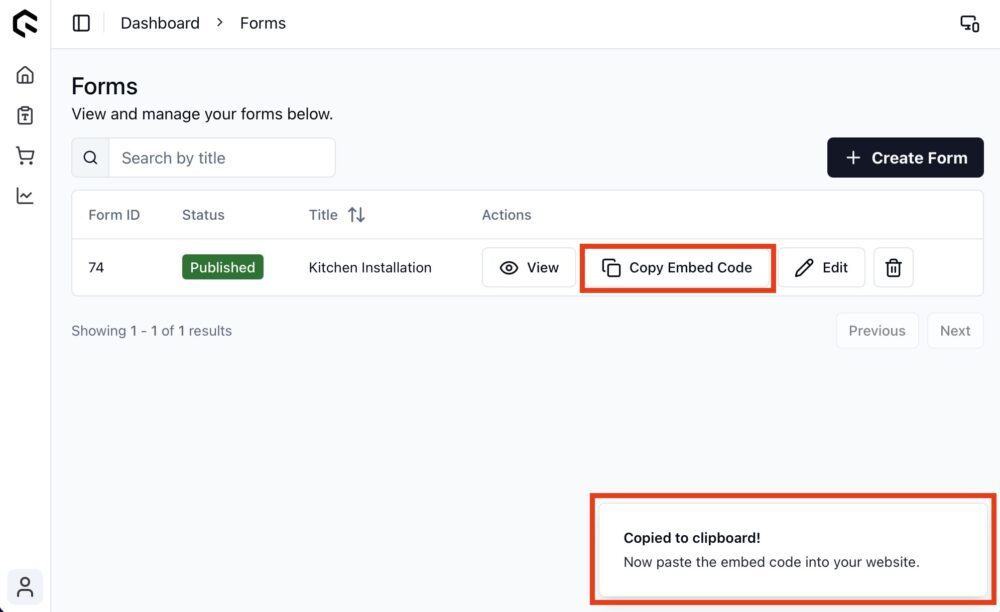
Figure 1) Grabbing the embed code.
Below are platform-specific instructions to help you get it done fast.
WordPress
There are two main ways to add your Quotify form to a WordPress site:
1. Using the Block Editor (Gutenberg)
- Navigate to the page or post where you want the form.
- Click the + icon to add a new block.
- Search for and select the “Custom HTML” block.
- Paste your embed code.
- Click Preview to make sure it looks right, then Update or Publish.
2. Using Classic Editor or Page Builders (like Elementor)
If you’re using the Classic Editor:
- Simply switch to the Text tab (not Visual), paste the embed code where you want it, and save.
For Elementor or other page builders:
- Use an HTML widget/module, drag it into place, and paste your code.
Shopify
Shopify doesn’t allow JavaScript in product descriptions, but you can still embed Quotify forms on custom pages:
- In your Shopify admin, go to Online Store → Pages.
- Click Add page (or edit an existing one).
- In the content editor, click the “Show HTML” button (< >) in the toolbar.
- Paste your Quotify embed code.
- Save and preview the page.
Pro tip: You can also add the form to a section of your homepage by editing your theme’s code, but this requires basic knowledge of Liquid and HTML.
Joomla
- From your Joomla admin, go to Content → Articles and open or create an article.
- Switch the editor to HTML mode (click the <> or “Source” button depending on your editor).
- Paste in your Quotify embed code where you want the form to show.
- Save and view the article.
Important: Make sure your editor or security settings don’t strip out iframe or script tags. You might need to allow these under Global Configuration → Text Filters.
Wix
Wix makes embedding HTML straightforward with their Embed element.
- Go to your Wix Editor.
- Click Add (+) → Embed → Embed a Widget.
- Drag the HTML iframe element to where you want the form.
- Click Enter Code, paste your Quotify embed code, and hit Apply.
That’s it - your quote form should now be live! Remember to test the integration.
Squarespace
Squarespace supports custom code embeds on most plans, so you can easily add your Quotify quote form using their Code Block.
To embed your form:
- In your Squarespace dashboard, open the page where you want to add the form.
- Click Edit on the section or content block.
- Click the + icon to add a new block, then choose “Code”.
- Paste your Quotify embed code into the code editor.
- Click Apply, then Save the page.
A few things to note:
- If your form doesn’t appear right away, try refreshing the page after publishing.
- Make sure JavaScript is allowed in the Code Block (most templates support this by default).
If you’re using Squarespace 7.1, this works exactly the same. For older versions, you might need to use the Embed Block instead of Code, but we recommend sticking with Code for better control.
Sharing the form’s link directly
You may also share the form URL directly with a customer. To do so, follow this article here.